Operating Systems
How To Replace Windows With ChromeOS Flex For Free: Step-by-Step Guide
Share
TL;DR
-
ChromeOS Flex can replace Windows on compatible older PCs with a lightweight, cloud-first operating system.
-
Installing ChromeOS Flex is free, but the full installation erases Windows and all local data.
-
Users should back up files, check hardware compatibility, and test ChromeOS Flex from USB before installing it permanently.
-
ChromeOS Flex works best for browser-based tasks but does not support standard Windows apps or regular Android apps.
-
The switch can help extend the life of aging hardware without requiring a new laptop or operating system license.
Introduction
In the movie Top Gun: Maverick, the story keeps returning to one idea: newer does not automatically mean better, and older machines can still deliver when they are given the right conditions to perform. The same logic can apply to an aging laptop. A Windows PC that feels slow or struggles with newer system requirements may not be finished yet. Its hardware could still have plenty of useful life left, even if the operating system running on it no longer feels like the best fit.
That is where ChromeOS Flex enters the picture. Google designed it as a lightweight, cloud-first operating system for compatible PCs, with experience centered around Chrome, web apps, and online services. For anyone looking to replace Windows 10 with ChromeOS Flex, the option has become especially relevant since standard Windows 10 support ended on October 14, 2025.
ChromeOS Flex itself can be installed without purchasing an operating system license, but switching successfully involves more than simply plugging in a USB drive. You need to check compatibility, protect your existing data, test essential hardware, and understand what you may be giving up by leaving Windows behind.
This guide walks through the complete ChromeOS Flex installation steps, from preparing your old PC to setting up the finished system.
What Is ChromeOS Flex?
ChromeOS Flex is a version of Google’s ChromeOS platform built to run on many existing Intel- and AMD-based PCs. Instead of relying on traditional locally installed desktop software, it focuses heavily on the Chrome browser, progressive web apps, cloud storage, streaming services, and browser-based productivity tools.
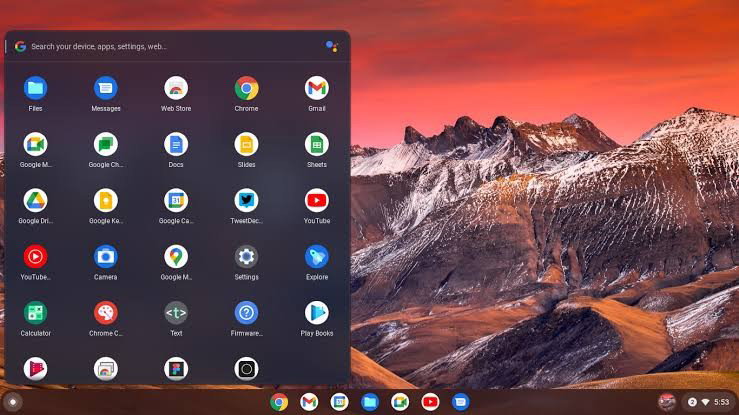
That makes it useful for web browsing, email, online meetings, cloud collaboration, media consumption, and other lightweight work. It can also be a practical way to install ChromeOS Flex on an old PC that would otherwise be retired.
However, ChromeOS Flex is not identical to the ChromeOS that ships on a Chromebook. Flex does not have the same Google security hardware or verified boot implementation found on purpose-built ChromeOS devices. Google Play and regular Android app support are unavailable, while Linux development environment support varies by model.
Think of it as a way to convert an old laptop to Chromebook-like functionality, rather than a method for creating an exact Chromebook equivalent.
Understanding what ChromeOS Flex offers is only the first step. Before replacing Windows entirely, it is worth checking whether your hardware, apps, files, and everyday workflow are actually ready for the switch.
What To Consider Before You Replace Windows With ChromeOS Flex
A full ChromeOS Flex installation replaces the existing operating system and erases the internal drive. Windows, locally installed programs, settings, and files stored on that drive are removed. Google also does not support dual booting ChromeOS Flex alongside another operating system.
Back up documents, photos, downloads, license information, and other important files to cloud storage, an external drive, or both. Once the full installation begins, assume existing data will not be recoverable.
Next, check whether your computer is suitable.
Google lists these minimum requirements for ChromeOS Flex:
-
Intel or AMD x86-64-bit compatible processor
-
At least 4 GB of RAM
-
At least 16 GB of internal storage
-
Ability to boot from a USB drive
-
Administrator access to BIOS or UEFI settings
Google also notes that Intel or AMD hardware from 2012 and earlier, as well as NVIDIA graphics from 2014 and earlier, are not recommended or supported.
Meeting the minimum specifications does not guarantee a perfect experience. Google tests individual models for its certified list. Non-certified machines can still work, but Wi-Fi, sleep, touchpads, graphics, cameras, or ports may behave unpredictably.
That is why testing requisites before installation matters.
What You Need For A ChromeOS Flex Installation
You will need:
-
The PC or laptop you want to convert
-
A USB flash drive with at least 8 GB of capacity
-
A working computer to create the installer
-
Google Chrome if you use the Chromebook Recovery Utility
-
A stable internet connection
-
A complete backup of anything important
The USB drive will be erased while creating the installer, so copy anything valuable from it first. Google recommends the Chromebook Recovery Utility as the easiest method on Windows, macOS, or ChromeOS, although advanced users can also download the image and create bootable media manually.
With those basics covered, you are ready to turn an old Windows PC into a Chromebook-style machine.
ChromeOS Flex Installation Steps
The sequence to follow the installation is presented here with simple actions:
Step 1: Create The ChromeOS Flex USB Installer
Open Google Chrome on a working computer and install the Chromebook Recovery Utility extension.
Launch the utility, select Get started, and choose the option to select a model from a list. For the manufacturer, choose Google ChromeOS Flex. For the product, choose ChromeOS Flex.
Insert the USB drive, select the correct drive, and continue with Create now.
The utility downloads the ChromeOS Flex image and writes it to the USB drive. Do not unplug the drive while the process is running. When the recovery media is ready, safely remove it.
You now have a bootable ChromeOS Flex installer.
Step 2: Boot The Old Windows PC From The USB Drive
Shut down the target PC completely. Insert the USB installer, turn the computer on, and immediately open its boot menu.
The key used to open the boot menu varies by manufacturer and model. Depending on the PC, it may be a function key, Escape, or another startup key. If the USB drive does not appear, enter the BIOS or UEFI settings and check whether USB boot is enabled or whether the boot order needs changing.
Choose the USB drive as the startup device. If everything works correctly, the ChromeOS Flex welcome screen will appear.
Step 3: Choose “Try It First” Before Installing
This is the safest part of the process and one you should not skip.
When ChromeOS Flex starts, choose Get started, then select ‘Try it First’ instead of immediately installing it. ChromeOS Flex will run directly from the USB drive without deleting Windows.
The live USB experience may feel slower than a full installation, but it lets you check essential hardware. Google treats live booting as temporary because performance, storage, updates, and some hardware behavior are more limited.
Test:
-
Wi-Fi and Ethernet
-
Keyboard and touchpad
-
Audio and microphone
-
Webcam
-
Bluetooth
-
Display brightness
-
External monitor output
-
Sleep and wake behavior
-
USB ports
-
Any accessories you use regularly
If an essential feature does not work, do not assume the full installation will fix it.
Step 4: Install ChromeOS Flex Permanently
If the test goes well, sign out of the temporary ChromeOS Flex session.
From the sign-in screen, choose Install ChromeOS Flex. Read the erase warning carefully, then confirm the installation.
ChromeOS Flex will write itself to the internal drive and remove the existing operating system. When the process finishes, the computer shuts down automatically. Remove the USB installer before turning it back on.
You have now completed the core ChromeOS Flex installation.
Step 5: Complete The First-Time Setup
Turn the computer back on. ChromeOS Flex will guide you through the initial setup, including network connection, Google account sign-in, and basic preferences.
Once you reach the desktop, run another hardware check. A permanent installation should generally perform better than the live USB session, so judge whether the PC feels responsive enough for normal work.
Sign in to Chrome, sync your browser settings if desired, and install the web apps or extensions you rely on. If your workflow is already browser-based, the transition can feel familiar.
Once ChromeOS Flex is installed and running, the technical part of the switch is complete. The bigger question now is whether the new setup can actually take over everything Windows handled before, or whether certain apps, features, and workflows still leave room for the old operating system.
Can ChromeOS Flex Completely Replace Windows?
The answer depends less on the age of your computer and more on the software you need.
ChromeOS Flex can completely replace Windows for users whose daily workload is mostly browser-based. If you browse the web, stream content, attend video calls, work in cloud documents, and use web-based tools, it may cover most or all of your needs.
The equation changes when your workflow depends on traditional Windows software.
ChromeOS Flex does not natively run standard Windows desktop applications, and it does not support Windows virtual machines through Parallels Desktop. It also lacks general Google Play and Android app support. Certain hardware features, including fingerprint readers, infrared face-recognition cameras, active pens, CD/DVD drives, and some proprietary docks, are not officially supported.
Before you replace Windows with ChromeOS Flex, list the applications you actually use and check whether each has a capable web version or browser-based alternative.
If even one mission-critical program requires Windows, keeping Windows on a supported PC or choosing another upgrade path may be more practical.
If ChromeOS Flex can cover your everyday computing needs well enough to replace Windows, the next question is what that switch actually costs and whether any paid components are involved.
Is Google ChromeOS Flex Completely Free?
For personal installation, ChromeOS Flex itself is free to download and install. You do not need to buy an operating system license simply to convert a compatible PC.
Organizations should separate the cost of the operating system from enterprise management. Businesses and schools that want centralized policy controls, enrollment, and enterprise management features may need paid Chrome Enterprise or Education upgrades for managed devices.
For someone trying to convert an old laptop to Chromebook-style use at home, there is no purchase required for the basic ChromeOS Flex installation.
With the pricing out of the way, the bigger question is what ChromeOS Flex actually delivers once it is running on older hardware. Its real value comes from how it changes the day-to-day experience of using an old system.
What Are The Biggest Benefits Of ChromeOS Flex On An Old PC?
The strongest benefit is extending the useful life of hardware that may still be physically sound. A laptop that feels constrained under Windows can become useful again for browsing, writing, online learning, streaming, or secondary-device duties.
Topics For More Insights
ChromeOS Flex also reduces much of the traditional desktop maintenance burden. Updates are handled automatically, the interface is relatively simple, and the operating system is built around a cloud-first model. Google positions it as a way to modernize existing PCs rather than replacing them outright.
Reusing working hardware for several more years can also be more economical than replacing a computer solely because its original operating system no longer fits the job.
Still, a lighter operating system cannot repair a worn-out battery, failing storage, damaged keyboard, or unsupported component. ChromeOS Flex can improve the software experience, but the underlying hardware still matters.
Common ChromeOS Flex Problems And How To Avoid Them
If the PC refuses to boot from the installer, check whether USB boot is enabled in BIOS or UEFI. If you get a blank screen, strange display behavior, or missing hardware, verify the exact model against the certified list.
Wi-Fi issues can also appear on some laptops. Testing from USB before installation gives you a chance to catch that problem while Windows is still intact. Google notes that non-certified models can work but are not guaranteed to remain stable or fully functional across updates.
Also remember that live boot performance is not representative of the final installation. Running from USB is intended for evaluation, not permanent everyday use.
The safest strategy is simple: back up first, test everything, then install.
Once the common issues are understood, the next concern is whether ChromeOS Flex is the right fit for your old Windows PC.
Should You Turn Your Old Windows PC Into A Chromebook With ChromeOS Flex?
If your old Windows computer still has functional hardware but feels increasingly mismatched with modern Windows requirements, ChromeOS Flex can give it a useful second role without adding the cost of another operating system.
It works best when your digital life already lives in the browser. For web apps, email, streaming, cloud documents, learning, and general-purpose browsing, the transition can be straightforward. For specialist Windows applications, PC gaming, Android apps, or hardware-dependent workflows, the limitations deserve more attention.
The real advantage is that you do not have to guess. ChromeOS Flex lets you boot from USB and test the experience before Windows is erased.
So, if you want to install ChromeOS Flex on an old PC, start with compatibility, create the installer, test your hardware thoroughly, and only then make the permanent switch. A machine that seemed ready for retirement may still have several useful years ahead of it, just with a different operating system.
Conclusion
ChromeOS Flex can be a practical way to extend the life of an older Windows PC, especially when most everyday tasks already happen through a browser. The safest approach is to back up your data, test hardware compatibility from USB, and confirm that your essential apps work before replacing Windows permanently.
For the right device and workload, the switch can deliver a simpler, lighter computing experience at no operating system cost.
Frequently Asked Questions
Can ChromeOS Flex Run Linux Applications?
ChromeOS Flex may support the Linux development environment on compatible hardware, allowing some Linux applications and developer tools to run. However, availability can vary by device, so users should verify support during the USB testing stage before relying on Linux apps for critical workflows.
Can You Dual Boot ChromeOS Flex With Windows?
Google does not officially support dual booting ChromeOS Flex alongside Windows. A full ChromeOS Flex installation erases the internal drive and replaces the existing operating system. Users who want to keep Windows should test ChromeOS Flex from USB or use a separate device instead.
Can You Reinstall Windows After Installing ChromeOS Flex?
Yes. Installing ChromeOS Flex does not permanently prevent a computer from running Windows again. However, returning to Windows requires creating Windows installation media, reinstalling the operating system, restoring compatible drivers, and recovering personal files from a backup.
Wed, Sep 23, 2026

Enjoyed what you've read so far? Great news - there's more to explore!
Stay up to date with the latest news, a vast collection of tech articles including introductory guides, product reviews, trends and more, thought-provoking interviews, hottest AI blogs and entertaining tech memes.
Plus, get access to branded insights such as informative white papers, intriguing case studies, in-depth reports, enlightening videos and exciting events and webinars from industry-leading global brands.
Dive into TechDogs' treasure trove today and Know Your World of technology!
Disclaimer - Reference to any specific product, software or entity does not constitute an endorsement or recommendation by TechDogs nor should any data or content published be relied upon. The views expressed by TechDogs' members and guests are their own and their appearance on our site does not imply an endorsement of them or any entity they represent. Views and opinions expressed by TechDogs' Authors are those of the Authors and do not necessarily reflect the view of TechDogs or any of its officials. While we aim to provide valuable and helpful information, some content on TechDogs' site may not have been thoroughly reviewed for every detail or aspect. We encourage users to verify any information independently where necessary.
Loading comments...